Mac dictation private: voice typing that never leaves your Mac
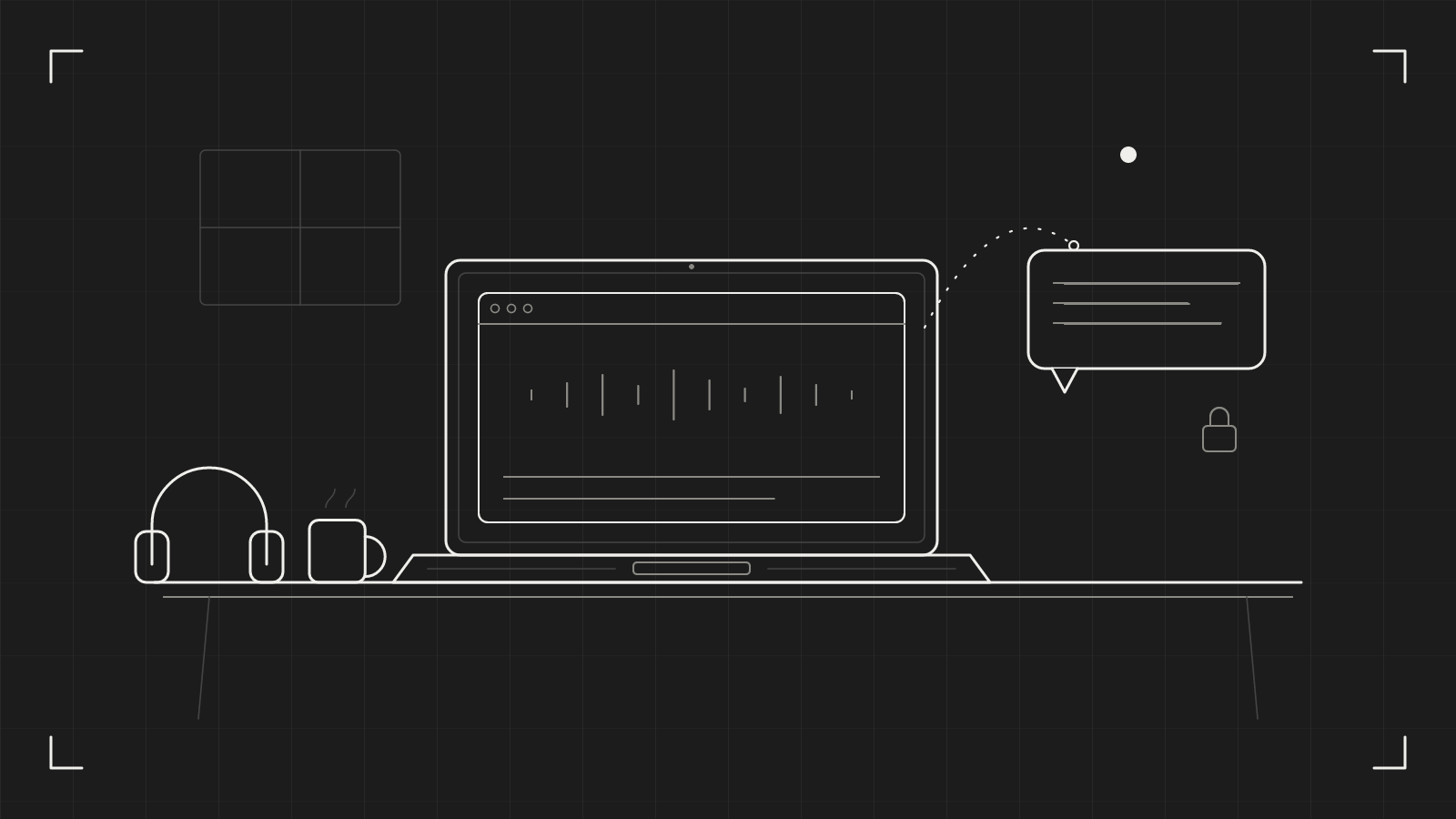
Most voice typing is a small act of trust. You talk, and your voice goes somewhere else to become text. If you want Mac dictation private, with no recording of you stored on a server you will never see, the question is not how good the transcript is. It is where the transcription happens.
We think the answer should be: on your Mac, and nowhere else. That is how dictation in catu works. Here is what it means in practice, and what to check in any dictation tool before you speak into it.
Where your voice goes
When you dictate, you say things you would not post publicly. A client's name. A figure from a contract. A message about a colleague. A medical appointment. Dictation is faster than typing precisely because you stop editing yourself, which is also why it picks up so much.
So ask three plain questions of any tool:
- Is the audio sent to a server? If yes, someone else's machine now has your voice.
- Is the audio kept? Even a tool that forgets the transcript may keep the recording.
- Does it work offline, once set up? That is a quick, honest test of where the work happens.
If a tool cannot answer these in one line, treat that as an answer.
What "on your Mac" means in catu
In catu, your words are turned into text on your Mac. Then Apple Intelligence, also on your Mac, tidies the text. No audio is kept, and nothing is uploaded. What remains is the text, on your clipboard and in your clipboard history.
catu listens only while you hold ⌥Space, or after you press it twice for hands-free. The card at the bottom of the screen says "Apple Intelligence · on this Mac" under it, so you do not have to take our word for it: it is written where you are looking.
One honest detail. The first time you dictate in a language, your Mac downloads what it needs for that language, so it needs an internet connection once. That is a download to your Mac. Your voice does not travel the other way.
The tidy-up, without the cloud
Raw speech is messy. You say "um", you start a sentence twice, you forget the full stop. Normally, cleaning that up is the job of a bigger model somewhere remote. In catu, Apple Intelligence does it on your Mac:
- It removes fillers, false starts and repeated words.
- It adds capitals and punctuation, as much as the style asks for.
- Say "new line" or "new paragraph" and it starts one.
It does not add words, answer, summarise or translate. You choose Formal (full punctuation, for email) or Casual (light punctuation, like a chat message) by pressing 1 or 2 while you talk. catu remembers the choice for each app, and chat apps such as Messages and Slack start Casual.
You can also say a change to text you copied: select it, press ⌘C, hold ⌥Space, press 3, and say "make it shorter". That runs on your Mac too.
The trade-offs
Private has a price, and you should know it.
- It needs macOS 26 and a Mac that supports Apple Intelligence, with Apple Intelligence turned on. If your Mac does not support it, dictation is not available on it. We would rather say that than fall back to a server quietly.
- It does not type for you. The text lands on your clipboard and you press ⌘V. That is a deliberate choice: catu does not need Accessibility access for dictation, so there is one less permission to hand over.
- One language at a time. catu uses the first language on your Mac's Preferred Languages list that dictation supports.
None of this is glamorous. All of it follows from keeping the work on the machine in front of you.
Check it yourself today
You do not have to trust any tool, ours included. Try this with whatever you use now:
- Open the tool's privacy page and find the sentence about audio. Is it kept? Is it sent?
- Switch off your Wi-Fi and dictate a sentence. If it still works, the work is local. If it fails, your voice was going somewhere.
- Look in System Settings › Privacy & Security › Microphone and see which apps can listen. Remove any you do not recognise.
- Add the names you dictate often, such as clients and products, to the tool's custom words so you correct less and re-read less.
Five minutes, and you will know where your voice goes.
What catu does about it
Dictation in catu is free, needs no account and no plan, and never leaves your Mac. Hold ⌥Space, talk, let go, paste. Setup is two steps in Settings › Dictation: allow the microphone and turn on Apple Intelligence. The full detail, including the shortcut and the style options, is in the dictation help page.
catu is one menu-bar app for everything you capture on a Mac. Free on your Mac; the Web app plan for sharing and editing.
See what it does