Scrolling screenshot on a Mac: capture the whole page, not a corner of it
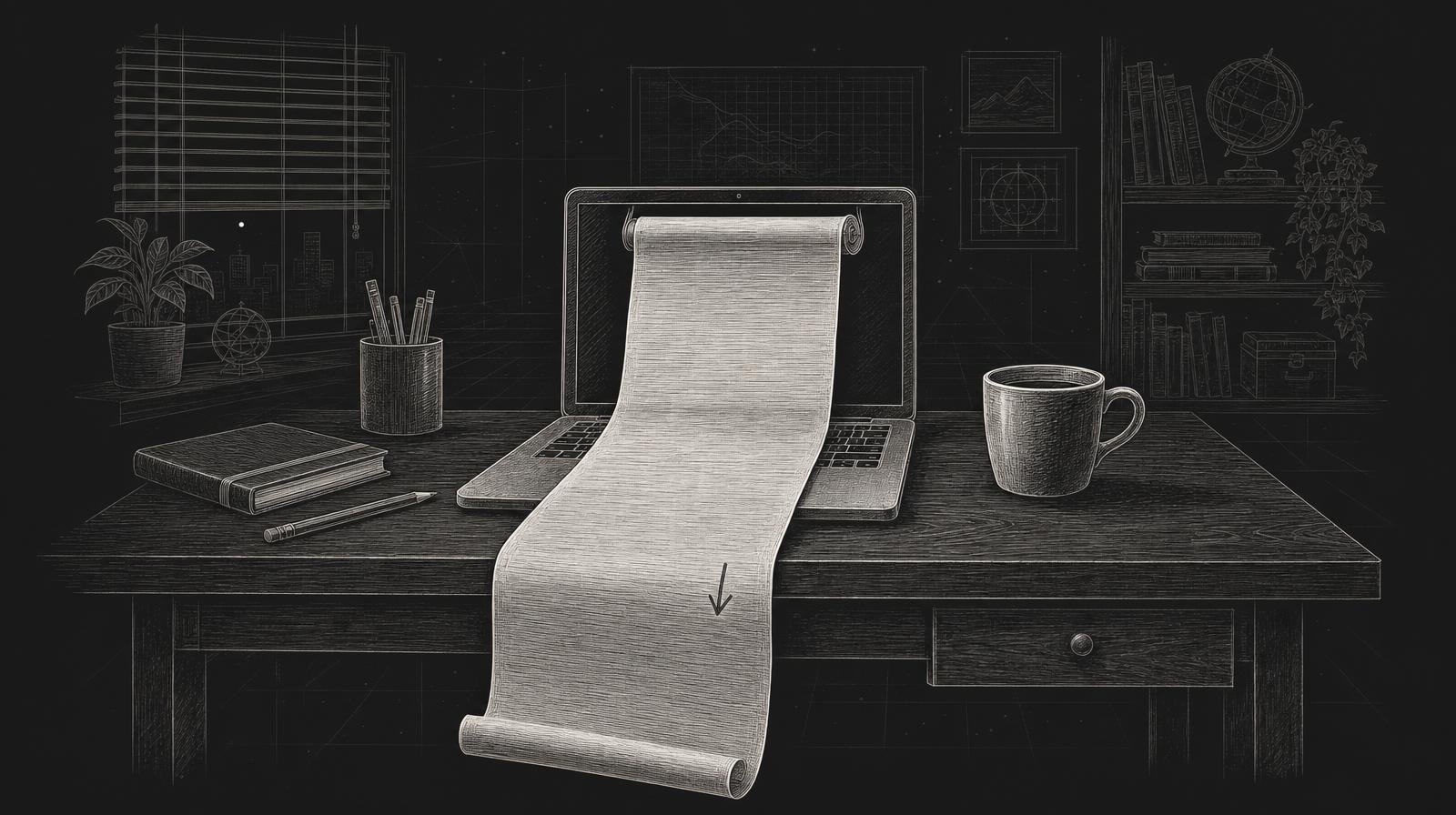
You need a scrolling screenshot on a Mac, and the system tool does not give you one. You can capture what is on the screen. The rest of the page, the long chat or the document with forty rows, stays below the edge. So people take six screenshots, paste them into a slide and hope the seams line up. They never do.
There is a better way. Scroll once, and get one tall image.
Why one screenshot is never enough
A screen is a window onto something longer. A pricing page, a settings panel, a support thread, an invoice: all of them run past the bottom edge.
The usual workarounds each cost something:
- Several screenshots in a row. The reader has to stitch them together in their head. Half of them overlap, and one is always missing.
- Print to PDF. It works for some pages. It also moves the layout around and cuts things at page breaks.
- Shrinking the browser zoom. You get everything on one screen and none of it is readable.
A designer sending a review of a landing page wants the whole page, top to bottom, in one image. A developer reporting a layout bug wants to show that the footer is wrong and where it sits relative to the header. One image does that. Six do not.
How to take one with catu
Press ⌃⇧⌘2, or click “Scrolling Capture” in the catu menu.
- Drag over the part of the window that scrolls. You can also press Space and click a window.
- A dashed frame marks the area, and a small bar appears next to it.
- Scroll down slowly with your trackpad or mouse.
- At the end, click “Done” or press Return.
The bar shows how tall the image is so far. catu stops by itself at 20,000 pixels. Changed your mind? Click “Cancel” or press Esc.
Headers and footers that stay fixed while you scroll, such as a sticky navigation bar, appear only once in the result. You do not get the same menu repeated every screen.
The finished image is handled like any other screenshot. It is copied, added to your clipboard history, saved as a file, and the capture card appears.
Slowly is the whole trick
catu lines up each new part of the page with the part before it. That works best when the page moves at a steady pace.
If you scroll too fast, or the page jumps, the bar says “Lost track: scroll back up a little”. Do exactly that. Scroll back up until the message goes, then carry on more slowly.
Two other things to know:
- Pick only the scrolling part. If you drag over too little, catu says “Select a larger area to scroll”. Drag over more of the content.
- Moving content confuses it. Videos and animations can cause gaps or repeats. Scroll more slowly, or capture a quieter part of the page.
None of this is hard. It takes about ten seconds the first time, and then your hand knows it.
What to do with the long image
A tall image is only useful if it gets to the right person without fuss.
Mark it up. Click the preview on the capture card to open the editor. Press A for an arrow, N for numbered steps, B to blur anything private, such as an email address or a name. Return copies the result and closes the editor.
Paste it. The image is already on your clipboard, so ⌘V works in a chat, an email or a document.
Send a link instead. The Copy share link button on the capture card uploads the image and puts a link on your clipboard. A very tall image is easier to read in a browser than as an attachment that opens in a preview window. Sharing links needs the Web app plan.
Find it later. If you pasted over it by accident, it is in your clipboard history, one click away.
Try it today
Pick the longest page you looked at this week. A bug thread, a documentation page, a long invoice.
- Press ⌃⇧⌘2.
- Drag over the part that scrolls.
- Scroll slowly to the bottom and press Return.
- Press N and number the three things the reader must see.
Do that once and you will not go back to stitching screenshots.
If it does nothing the first time, check that catu has Screen Recording permission in System Settings › Privacy & Security. Scrolling capture needs it, like every capture.
What catu does about it
Scrolling capture is part of the free Mac app, next to screenshots, the markup editor, text from the screen and screen recording. One menu-bar icon, one shortcut for each job. The full steps, and what to do when the capture goes wrong, are in the screenshots help page.
catu is one menu-bar app for everything you capture on a Mac. Free on your Mac; the Web app plan for sharing and editing.
See what it does