Video feedback comments: how to review a recording without a meeting

Video feedback comments work best when they point at the exact second they are about. "The logo looks off somewhere in the middle" starts a meeting. "00:42: the logo is cropped" starts a fix. This post is about getting the second kind, without booking the first.
Why a meeting is the default
Someone sends a recording. The reviewer watches it, has six thoughts, and can't attach any of them to anything. So they write an email from memory, or they ask for a call and watch it again together.
Both cost more than the feedback is worth. The email loses the moment: you have to scrub back to guess what "the transition" meant. The call costs two diaries for a note that takes ten seconds to say.
Feedback on video needs two things. It has to sit next to the video, and it has to know where in the video it belongs. Take away either and you are back to guessing.
A designer sending a cut to a client knows this well. So does a teacher sharing a walkthrough with a class, or a developer showing a colleague what a bug does. The people watching have opinions. The problem is where to put them.
Pin the comment to the moment
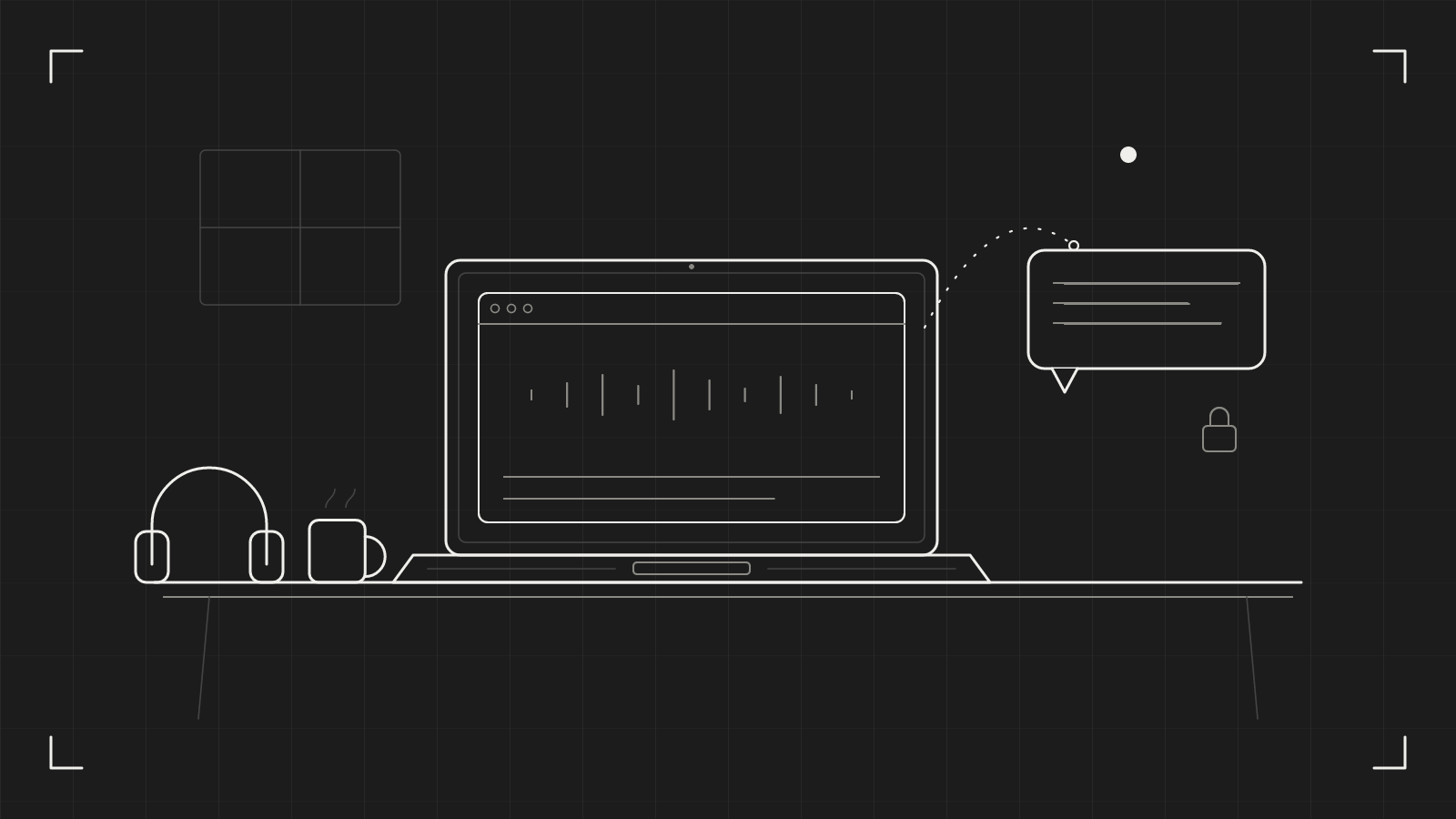
On a catu recording, the comment box has a button next to Post that shows the time where the video is, for example at 00:42. It follows the video as it plays. With it on, which is the default, your comment is pinned to that moment. Click it to turn it off and the comment is about the whole recording.
The reader sees the time at the start of the comment. Click it and the video jumps there and plays. No scrubbing, no "where do you mean?".
That one detail changes what a review looks like. Ten comments on one recording are ten small, specific notes, in order, each one a click away from the evidence.
Nobody needs an account
The person you send the link to opens it in any browser, with no app and no account. They type a name in Your name, write the comment and click Post. It appears for everyone within a few seconds, without reloading.
That matters more than it sounds. Clients, freelancers and colleagues from other teams will not sign up for a tool to tell you the font is wrong. If they can comment as easily as they can watch, they will.
You stay in charge. Per clip, you choose whether Anyone, Signed in or Off can comment. You can remove any comment, and block a guest if you need to.
Answer in the thread
Feedback is a conversation, not a list. Under each comment is Reply. Replies sit under the comment they answer, so "fixed, check 00:42" lands exactly where the question was asked, and nobody has to hunt for it.
You can reply from the clip page or from the clip in your Library. When you are the owner your comments are marked Owner, so it is clear who is answering.
You don't have to watch the page, either. catu emails you when someone comments, with who, which clip, the comment and the moment. To keep your inbox calm you get at most one comment email an hour for each clip. Anything after that is rolled up into a single email.
Try this today
Next time you ask someone for feedback on a video, give them one instruction: pause the video where you see the problem, then comment. The time marker follows the playhead, so a paused video means a marker that points where they mean. It is one sentence in your message and it removes most of the ambiguity.
If you are the reviewer, do the same. Pause first. Write one point per comment. Put the fix in the comment, not just the complaint. A note that says "trim two seconds here" can be acted on in one pass; a note that says "feels slow" needs a follow-up.
What catu does about it
You record on your Mac, share the capture as a link, and the people you send it to can comment on it, pinned to the moment, as guests or signed in. You get the notes in your Library next to the recording. Comments are part of the Web app plan for the person who shares; the people who comment never pay. The details are in the comments help page.
catu is one menu-bar app for everything you capture on a Mac. Free on your Mac; catu Pro for sharing and editing.
See what it does