HelpCapture
Clipboard history
Find and paste anything you copied recently, pin what you need again, and keep passwords out of the history.
catu remembers what you copy, so you can paste something from ten minutes ago without going back to find it. Your history stays on your Mac, and passwords and keys are left out.
Open your history#
Click the catu icon in the menu bar. Your recent copies are at the top of the menu, newest first, with the app you copied from and how long ago. The search field is ready for typing straight away.
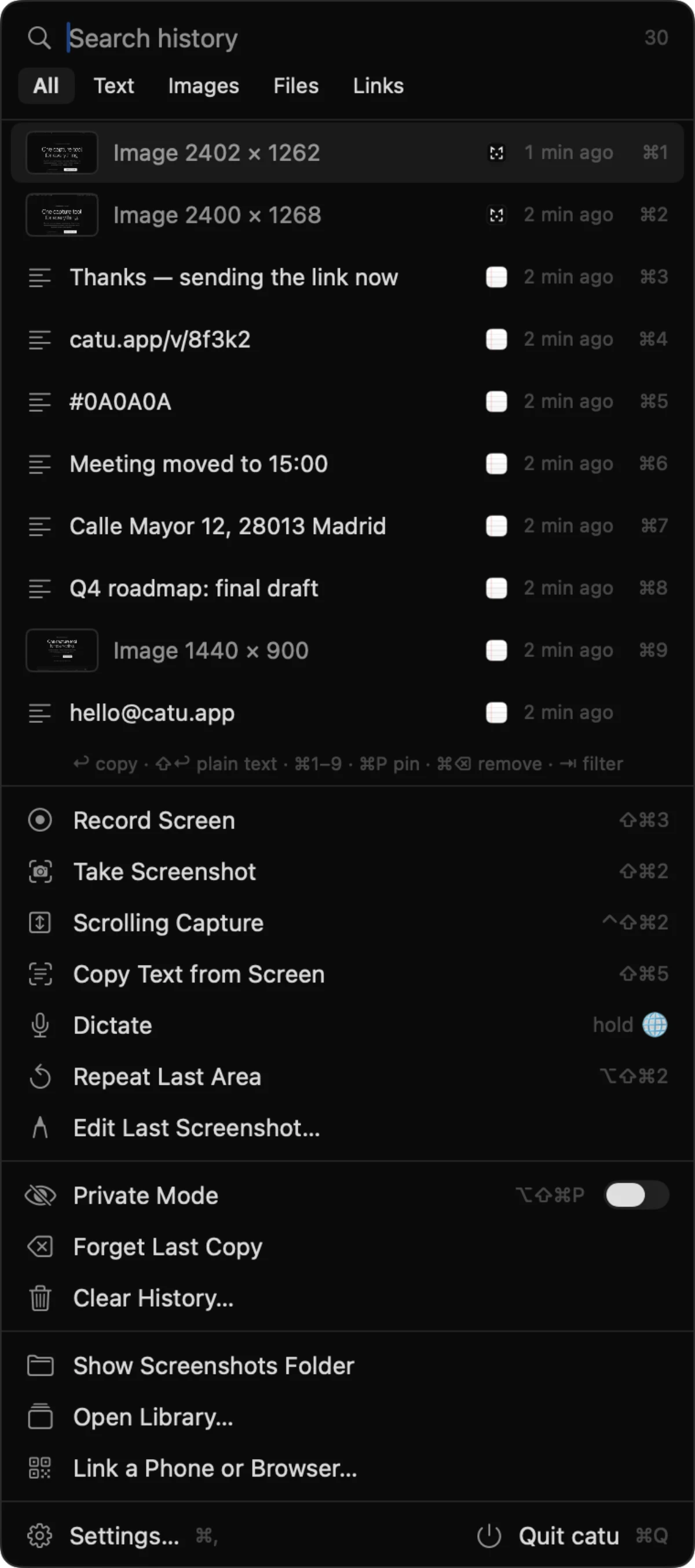
Each row shows one item: a line of text, a link, a file name, or a small preview of an image. A Formatted label means the text kept its fonts and styles. A From Screen label means you read it off the screen with Copy Text from Screen.
Press Esc, or click anywhere else, to close the menu.
What catu keeps#
Anything you copy in any app is added to the top of your history:
- text, with its formatting when the app provides it
- links
- images, including screenshots
- files you copy in Finder
- colours copied from design apps
If you copy the same thing twice, it moves back to the top instead of appearing twice.
For files, catu remembers which files you copied, not what is inside them. The files need to still be where they were when you paste them.
How many items, and for how long#
catu keeps your last 30 items. You can change this to 10, 20, 40 or 49 items:
- Click the catu icon in the menu bar, then click “Settings…”.
- Open General.
- Under History, choose a number from “Keep the last”.
When the history is full, the oldest item drops off each time you copy something new. Pinned items are never pushed out.
Your history lasts until catu quits, unless you save it on this Mac. There is no time limit while catu is running.
A single copy larger than about 20 MB, such as a very large image, is not kept in the history. It still pastes normally. If the history fills up with big images, catu drops the oldest images first.
Paste something you copied earlier#
- Click the catu icon in the menu bar.
- Click the item you want, or move to it with the arrow keys and press Return.
- Go back to your app and press ⌘V.
catu shows “Ready to paste · ⌘V” to confirm the item is on your clipboard. It also moves to the top of your history.
You can also press ⌘1 to ⌘9 while the menu is open to pick one of the first nine items. The number is shown at the end of each row.
The numbers follow what you can see. If you have searched, filtered or pinned items, ⌘1 is the first row in the list as it is now.
Paste as plain text#
Plain text drops fonts, colours and links, so the text takes on the style of wherever you paste it.
- Open the catu menu and select the item.
- Press ⇧Return, or hover over the row and click the “Copy as plain text” button.
- Press ⌘V in your app.
catu shows “Plain text ready to paste · ⌘V”.
Search and filter#
Start typing as soon as the menu opens. catu searches the text of each item and the name of the app it came from. Letters typed in order also match, so vrb finds “vercel blob”.
The tabs under the search field narrow the list to one kind of item:
| Tab | Shows |
|---|---|
| All | Everything |
| Text | Plain and formatted text |
| Images | Images and screenshots |
| Files | Files copied in Finder |
| Links | Web addresses |
Click a tab, or press Tab to move to the next one (⇧Tab goes back). If nothing matches, the list shows “No matches”.
Pin items you use often#
Pinned items stay at the top of your history and are never pushed out by new copies. Use them for an address, a reply you send often, or a code snippet.
- Open the catu menu and select the item.
- Press ⌘P, or hover over the row and click the “Pin” button.
To unpin, do the same again. You can pin up to five items at a time.
Pinned items are cleared by “Clear History…”, and they disappear when catu quits unless you save your history.
Remove items#
To remove one item, select it and press ⌘⌫, or hover over the row and click the “Remove” button.
To remove what you just copied, for example something you copied by mistake:
- Click the catu icon in the menu bar.
- Click “Forget Last Copy”.
This removes the newest item that is not pinned. It does not change what is on your clipboard right now.
To empty the whole history:
- Click the catu icon in the menu bar.
- Click “Clear History…”.
- Click “Clear” to confirm.
Every item is erased, pinned ones included. If you save your history on this Mac, the saved copy is updated too.
What is never kept#
Some copies are skipped on purpose. They still paste normally; catu just does not remember them. When this happens, the catu icon blinks a red lock.
- Password managers. Copies from 1Password, Bitwarden, KeePassXC, Strongbox, Enpass, Dashlane, Apple Passwords and Keychain Access are never kept. Many other password managers mark their copies as private, and catu respects that too.
- Text that looks like a secret. API keys, access tokens, private keys, passwords in connection strings and lines like
API_KEY=…are skipped, whichever app you copy them from. - Apps you add yourself. You can stop catu recording copies from any app.
To change the list of apps:
- Open “Settings…” from the catu menu, then Privacy.
- Under “Never record copies from”, click “Add App…” and choose the app.
- To take an app off the list, click “Remove” next to it. “Restore Defaults” brings back the original list of password managers.
catu decides by the shape of the text, so a long random-looking string may be skipped even when it is not a secret. It still pastes right after you copy it; it just won't be in your history later.
Private Mode#
Turn on Private Mode when you are about to copy things you do not want remembered. While it is on, nothing you copy is added to your history. Copying and pasting still work as usual.
Turn it on or off in any of these ways:
- press ⌥⇧⌘P
- hold ⌥ and click the catu icon in the menu bar
- open the catu menu and use the “Private Mode” switch
- open “Settings…”, then Privacy, and use “Private mode”
While Private Mode is on, the catu icon becomes a crossed-out eye. Private Mode turns itself off when catu restarts, so you never stay in it by accident.
Keep your history after a restart#
By default, your history is erased when catu quits or your Mac restarts. To keep it:
- Open “Settings…” from the catu menu, then General.
- Under History, turn on “Save history on this Mac”.
- Click “Save History” to confirm.
Your history is saved encrypted on this Mac only. It is kept out of Spotlight and Time Machine. Secrets and copies made in Private Mode are still never recorded. More in Privacy and security.
To stop, turn the setting off and click “Stop Saving”. The saved copy is deleted straight away. Your current history stays until catu quits.
Keys in the history#
These work while the catu menu is open. The hint line under the history lists them too.
| Key | What it does |
|---|---|
| ↑ ↓ | Move through the list |
| Return | Copy the selected item, ready to paste |
| ⇧Return | Copy it as plain text |
| ⌘1–⌘9 | Copy one of the first nine items |
| ⌘P | Pin or unpin |
| ⌘⌫ | Remove the item |
| Tab, ⇧Tab | Next or previous filter tab |
| ⌘, | Open Settings |
| Esc | Close the menu |
All of catu's shortcuts are on Keyboard shortcuts.
If something doesn't work#
- Something you copied is missing. Check whether the catu icon is a crossed-out eye: Private Mode is on. If the icon blinked a red lock, catu skipped the copy because it came from a password manager or looked like a key. Also check Settings › Privacy › “Never record copies from”.
- Your history was empty after a restart. History is only kept between restarts if “Save history on this Mac” is on.
- An older item has gone. It was pushed out by newer copies. Raise “Keep the last” in Settings › General, or pin the things you need to keep.
- Pinning does nothing. You already have five pinned items. Unpin one first.
- Picking an item does not paste it for you. That is expected: catu puts it on the clipboard, and you press ⌘V.
Checked against the app on 29 October 2026.
Still stuck? Write to us and we’ll answer, and fix this page if it let you down.
Get help