HelpGetting started
Keyboard shortcuts
Every shortcut in catu on one page, in the menu, the editor and the recording bar, and what to do if one clashes with macOS.
Every keyboard shortcut in catu, on one page. The global shortcuts work from any app; the others work while a catu tool is on screen.
Global shortcuts#
These work wherever you are, whether or not the catu menu is open.
| Shortcut | What it does |
|---|---|
| ⇧⌘2 | Take a screenshot: drag an area, press Space for a window, or Return for the whole screen |
| ⌥⇧⌘2 | Repeat the last area, without picking it again |
| ⌃⇧⌘2 | Scrolling capture of a long page |
| ⇧⌘3 | Record the screen. Press it again to stop |
| ⌥⇧⌘3 | Pause or resume the recording |
| ⌃⇧⌘3 | Record the last area again, straight into the countdown. The first time, you pick an area |
| ⇧⌘5 | Copy text from the screen |
| Hold ⌥Space | Dictate: talk, then let go to copy what you said, ready for ⌘V |
| Press ⌥Space twice | Dictate hands-free. One more press finishes |
| ⌥⇧⌘P | Turn Private mode on or off |
The menu-bar icon has two shortcuts of its own:
| Action | What it does |
|---|---|
| Click the icon | Open the menu. While you record, a click stops the recording |
| Option-click the icon | Turn Private mode on or off |
Dictation needs macOS 26 and a little setup first. See Dictation.
While you dictate#
While the dictation card is on screen:
| Key | What it does |
|---|---|
| 1 | Write the text Formal: full punctuation. catu remembers it for this app |
| 2 | Write the text Casual: light punctuation, like a chat message. catu remembers it for this app |
| 3 | Edit: what you say becomes an instruction for the text you copied. Press 3 again to go back to dictating. Shown only when the last thing you copied is text |
| ⌥Space | Finish, when you dictate hands-free |
More in Dictation.
While you pick an area#
When the screen dims after ⇧⌘2, ⇧⌘3, ⌃⇧⌘2 or ⇧⌘5, a hint at the top tells you the keys.
| Key | What it does |
|---|---|
| Drag | Select an area |
| Space | Switch to picking a window, and back |
| Return | Take the whole screen under the pointer (or the window under it, when picking a window) |
| Esc, or right-click | Cancel |
| Hold ⌥ as you let go | Copy text from the screen exactly as it is, without corrections. Best for code and keys (⇧⌘5 only) |
Return for the whole screen doesn't apply to a scrolling capture: drag over the part that scrolls, or press Space to pick a window.
While you scroll a long page#
| Key | What it does |
|---|---|
| Return | Finish and keep the capture (same as “Done”) |
| Esc | Throw it away (same as “Cancel”) |
While you record#
| When | Key | What it does |
|---|---|---|
| Recording bar, before you start | Return | “Start” |
| Recording bar, before you start | Esc | “Cancel” |
| During the 3, 2, 1 countdown | Return | Start straight away |
| During the 3, 2, 1 countdown | Esc | Cancel |
| Recording | ⌥⇧⌘3 | “Pause”, and “Resume” after a short countdown |
| Resuming after a pause | Return | “Resume now”, skipping the countdown. Esc stays paused |
| Recording | ⇧⌘3, or click the menu-bar icon | “Stop” |

More in Record your screen.
In the menu-bar menu#
| Key | What it does |
|---|---|
| Type | Search your history |
| ↑ ↓ | Move through the list |
| Return | Copy the selected item, ready to paste |
| ⇧Return | Copy the selected item as plain text |
| ⌘1 to ⌘9 | Copy the item in that row |
| ⌘P | Pin or unpin the selected item |
| ⌘⌫ | Remove the selected item |
| Tab, ⇧Tab | Next or previous filter |
| ⌘, | Open Settings |
| ⌘Q | Quit catu |
| Esc | Close the menu |
More in The menu-bar menu.
In the screenshot editor#
Press a single letter to pick a tool. Holding ⇧ works too.
| Key | Tool |
|---|---|
| V | Select |
| C | Crop |
| A | Arrow |
| L | Line |
| R | Rectangle |
| O | Oval |
| P | Pen |
| H | Highlighter |
| T | Text |
| N | Step number |
| M | Magnifier |
| S | Spotlight |
| X | Pixelate |
| B | Blur |
| D | Hide text only |
| E | Remove object |
| Key | What it does |
|---|---|
| Return, or ⌘C | Copy the screenshot and close the editor. While cropping, Return applies the crop |
| ⌘S | Save to the screenshots folder |
| ⌘Z | Undo |
| ⇧⌘Z | Redo |
| Delete | Remove the selected mark |
| Esc | Deselect. With nothing selected, close the editor |
| ⌘W | Close the editor |
| ⌘0 | Actual size |
| ⌘1 | Zoom to fit |
| ⌘+ and ⌘− | Zoom in and out |
| Hold ⇧ while drawing | Keep arrows and lines at 45° steps; keep rectangles, ovals and other boxes square |
| Hold ⌥ while drawing a rectangle | Fill the rectangle |
When you are typing text on the screenshot, Return places it and Esc throws it away. A screenshot you pin to the screen closes with Esc.
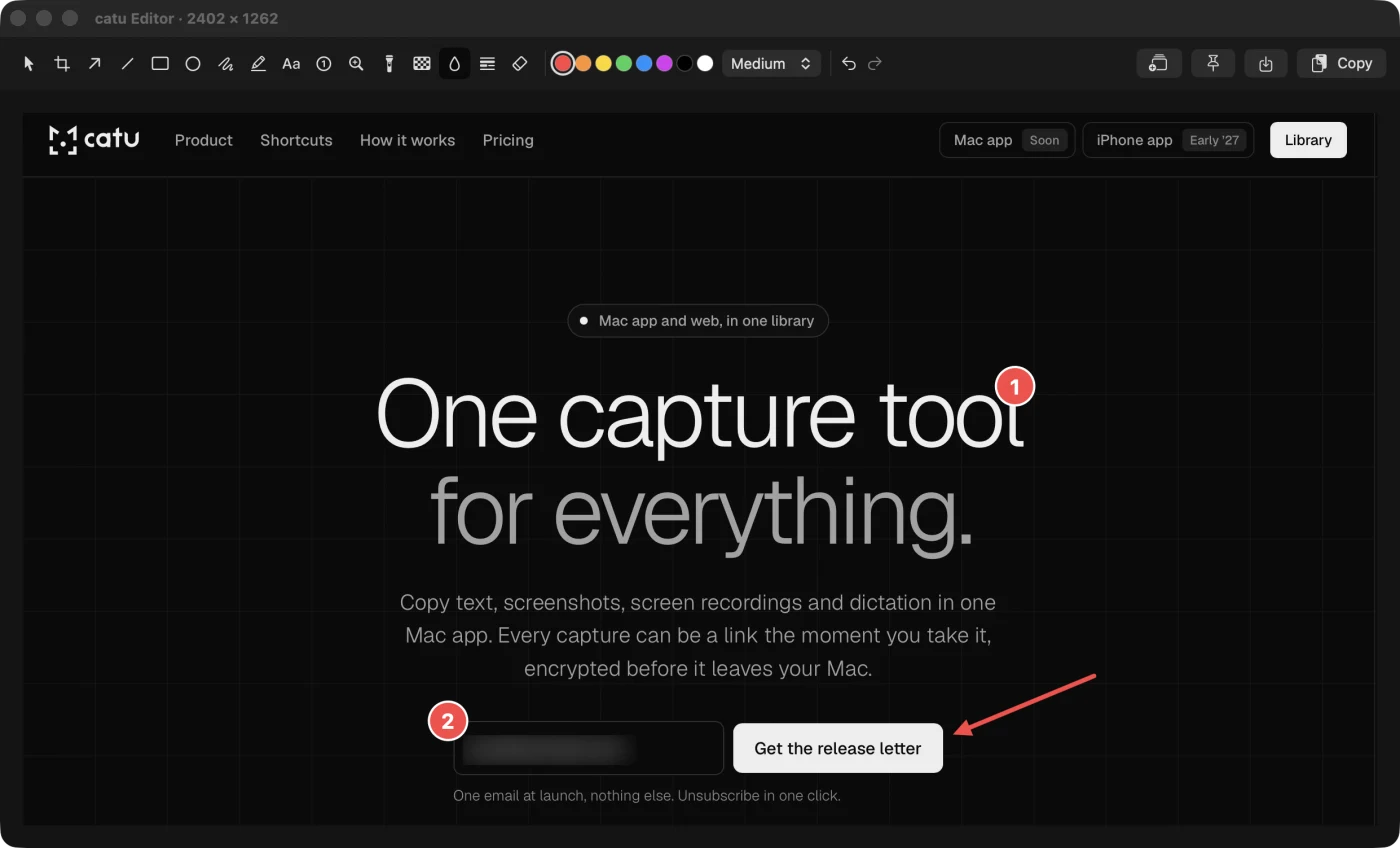
More in Mark up a screenshot.
Change a shortcut#
Every catu shortcut can be changed:
- Click the catu icon, choose “Settings…”, and click Shortcuts in the sidebar.
- Click the shortcut you want to change, then press the new keys.
Esc keeps the old shortcut. Delete removes it, so that action has no shortcut. If macOS or another app already uses those keys, catu says so: pick others, or free them in System Settings › Keyboard › Keyboard Shortcuts.
When a shortcut doesn't reach catu#
macOS uses ⇧⌘3 and ⇧⌘5 for its own screenshot tools, and macOS always wins. To give them to catu:
- Open System Settings › Keyboard and click “Keyboard Shortcuts…”.
- Click Screenshots in the list.
- Switch off “Save picture of screen as a file” (⇧⌘3) and “Screenshot and recording options” (⇧⌘5).
- Click “Done”.
When catu starts and another app already owns one of its shortcuts, catu says so: “Shortcut taken by another app: ⇧⌘2”. Change or switch off the shortcut in that app, then quit and reopen catu.
If something doesn't work#
- ⇧⌘3 or ⇧⌘5 opens macOS's screenshot tools instead of catu's: switch those off in System Settings › Keyboard › “Keyboard Shortcuts…” › Screenshots, as above.
- Holding ⌥Space doesn't start dictation: another app may be using ⌥Space; catu says “Shortcut taken by another app: ⌥Space” when it starts. Pick a different dictation shortcut in Settings › Shortcuts. catu doesn't use the 🌐 key for dictation.
- The editor's letter keys type nothing: click the screenshot first, so the editor has focus rather than a text box.
- ⌘1 to ⌘9 copies but doesn't paste: that is expected. Press ⌘V.
Checked against the app on 29 October 2026.
Still stuck? Write to us and we’ll answer, and fix this page if it let you down.
Get help