HelpGetting started
The menu-bar menu
Everything catu does starts from its icon in the menu bar: your recent copies on top, every capture below.
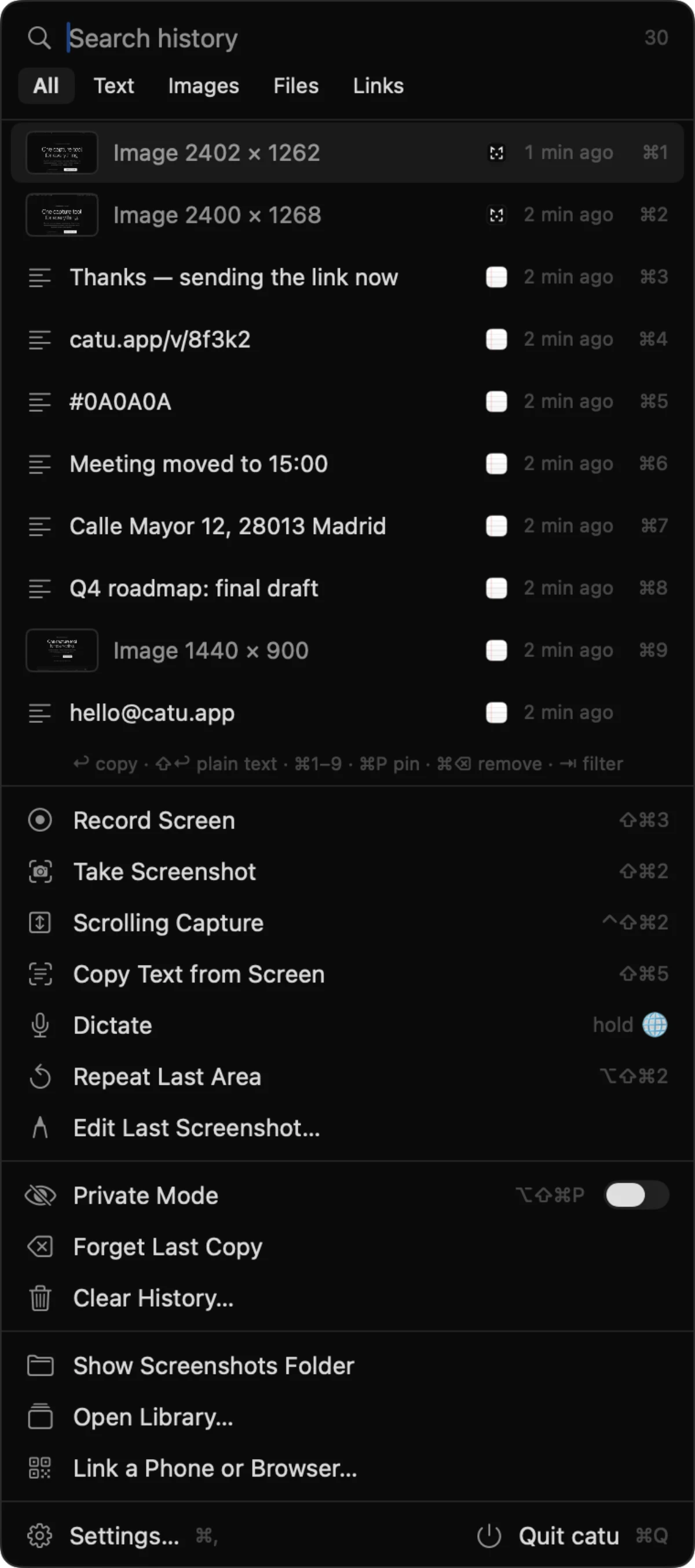
Click the catu icon in the menu bar to open its menu. Your recent copies are at the top, and every capture tool, setting and history action is underneath.
Open and close the menu#
- Click the catu icon to open the menu. Click it again, or press Esc, to close it.
- Option-click the icon to turn Private mode on or off without opening the menu.
- While you record the screen, a click on the icon stops the recording instead.
The app you were working in stays in front while the menu is open, so whatever you pick is ready to paste straight back into it.
Search your history#
The search field at the top has the cursor in it as soon as the menu opens, so just start typing. The number next to it is how many items your history holds.
- catu matches the text of each copy and the name of the app it came from.
- Type three letters or more and catu also finds loose matches, where the letters appear in order. For example, “vrb” finds “vercel blob”.
- If nothing matches, the list says “No matches”.
Under the search field are five filters: All, Text, Images, Files and Links. Click one, or press Tab to move to the next filter (⇧Tab goes back).
Your recent copies#
About ten rows are in view at once; scroll for the rest. Pinned items always come first. Each row shows:
- A thumbnail for images, or an icon for the kind of item. Pinned items have a pin.
- The first line of the text. “Formatted” marks text with styling, and “From Screen” marks text you copied with Copy Text from Screen.
- The icon of the app you copied it from, how long ago (“now” for the last few seconds), and ⌘1 to ⌘9 for the first nine rows.
Hold the pointer over a row to see the full text and a few small buttons: Edit and Copy share link for images, Pin, Copy as plain text and Remove.
To use an item:
- Click the row, or select it with the arrow keys and press Return.
- catu puts it on the clipboard and shows “Ready to paste · ⌘V”.
- Press ⌘V in your app.
Press ⇧Return to copy text without its formatting. More in Clipboard history.
An empty list says “Copy something and it shows up here”. If it says “Private mode is on”, catu is not recording copies until you turn Private mode off.
The actions, in order#
Below the history, the menu lists catu's actions in three groups. A greyed-out action can't be used yet; the reason is given below.
Capture#
| Action | Shortcut | What it does |
|---|---|---|
| “Record Screen” | ⇧⌘3 | Pick an area or window to record. See Record your screen. |
| “Take Screenshot” | ⇧⌘2 | Capture an area, a window or the whole screen. See Take a screenshot. |
| “Scrolling Capture” | ⌃⇧⌘2 | Capture a long page by scrolling it. See Take a screenshot. |
| “Copy Text from Screen” | ⇧⌘5 | Drag over any text you can see to copy it. See Copy text from the screen. |
| “Dictate” | hold ⌥Space | Start dictating hands-free. Greyed out on Macs before macOS 26. See Dictation. |
| “Repeat Last Area” | ⌥⇧⌘2 | Capture the same area again. Greyed out until you have captured an area. |
| “Edit Last Screenshot…” | Open your latest screenshot in the editor. Greyed out until there is an image. See Mark up a screenshot. | |
| “Upload a Video…” | Pick a video from this Mac to upload and edit in your web Library. Needs you to be signed in. See Your Library on the web. |
If dictation isn't set up yet, “Dictate” opens the Dictation page in Settings instead, with the steps still to do.
History#
| Action | Shortcut | What it does |
|---|---|---|
| “Private Mode” switch | ⌥⇧⌘P | While it is on, nothing you copy is recorded. It turns itself off when catu restarts. |
| “Forget Last Copy” | Removes the newest item that isn't pinned from your history. | |
| “Clear History…” | Erases every item, pinned ones included, after you confirm. |
“Clear History…” asks “Clear clipboard history?” first. Click “Clear” to erase everything, or “Cancel” to keep it. If you save your history on this Mac, the saved copy is cleared too. Both history actions are greyed out while the history is empty.
Files and the web#
| Action | What it does |
|---|---|
| “Open Screenshots Folder” | Opens the folder where every screenshot is saved, in Finder. |
| “Open Recordings Folder” | Opens the folder where every recording is saved, in Finder. |
| “Go to Web Library…” | Opens your Library on catu.app in your browser, already signed in. See Your Library on the web. |
| “Link a Phone or Browser…” | Shows a QR code that signs another device into your Library. |
“Go to Web Library…” and “Link a Phone or Browser…” need you to be signed in. If you aren't, catu asks you to “Sign in with Apple” first. The Library is part of the Web app plan: see Plans and billing.
Settings and Quit#
At the bottom, “Settings…” (⌘,) opens the Settings window, and “Quit catu” (⌘Q) quits the app. See Settings in the Mac app.
Link a phone or another browser#
- Click the catu icon and choose “Link a Phone or Browser…”.
- Point your phone's camera at the QR code and open the link.
- Your Library opens on the phone, signed in as you.
The code works once, for two minutes. When it runs out, the window says “This code has expired”; click “Show a new code” for another.
Anyone who scans the code is signed in as you, so show it only to your own devices. On this Mac, use “Go to Web Library…” instead.
Use the menu with the keyboard#
The hint line under the history sums it up: ↩ copy · ⇧↩ plain text · ⌘1–9 · ⌘P pin · ⌘⌫ remove · ⇥ filter.
| Key | What it does |
|---|---|
| Type | Search your history |
| ↑ ↓ | Move through the list |
| Return | Copy the selected item, ready to paste |
| ⇧Return | Copy the selected item as plain text |
| ⌘1 to ⌘9 | Copy the item in that row |
| ⌘P | Pin or unpin the selected item |
| ⌘⌫ | Remove the selected item from your history |
| Tab, ⇧Tab | Next or previous filter |
| ⌘, | Open Settings |
| ⌘Q | Quit catu |
| Esc | Close the menu |
Every shortcut in catu is listed in Keyboard shortcuts.
If something doesn't work#
- The history stays empty when you copy: check the menu-bar icon. A crossed-out eye means Private mode is on; press ⌥⇧⌘P to turn it off. Copies from apps in Settings › Privacy › “Never record copies from” are never kept either.
- Your history was gone after a restart: catu keeps history only until it quits, unless you switch on “Save history on this Mac” in Settings › General.
- Picking an item doesn't paste it: that is expected. catu puts it on the clipboard and you press ⌘V.
- “Go to Web Library…” asks you to sign in every time: sign in from Settings › Sharing with “Sign in with Apple…”, and check it shows “Signed in as”.
- “Dictate” is greyed out: dictation needs macOS 26. On macOS 26 it also needs Apple Intelligence; if that is missing, “Dictate” opens the setup steps instead. See Dictation.
Checked against the app on 29 October 2026.
Still stuck? Write to us and we’ll answer, and fix this page if it let you down.
Get help